How to Repair a Corrupted Thunderbird Inbox
Is your Thunderbird Inbox empty, slow, showing incorrect messages, or displaying blank email content? The folder index may be damaged, or the underlying Inbox mailbox may be incomplete or corrupted.
Quick answer: back up the complete Thunderbird profile, try Thunderbird’s Repair Folder option, and rebuild the Inbox index only if the built-in repair does not work. If Thunderbird still cannot display the messages, scan a safe profile copy with Amrev Thunderbird Email Recovery.
- How to recognize a corrupted Thunderbird Inbox
- The difference between the Inbox and Inbox.msf files
- Four methods for repairing or recovering Inbox messages
- How to scan the profile with Amrev Thunderbird Email Recovery
- How to reduce the risk of future Inbox corruption
Signs That the Thunderbird Inbox May Be Corrupted
A display problem does not always mean that email content has been permanently lost. First identify what Thunderbird is doing incorrectly.
- Inbox appears empty even though search finds messages.
- Message headers appear, but the email body is blank or incorrect.
- Recent messages disappear and older messages appear instead.
- The same messages appear more than once.
- Thunderbird freezes or responds slowly when Inbox is opened.
- Repair or compaction repeatedly fails.
Understand the Inbox and Inbox.msf Files
With Thunderbird MBOX storage, the extensionless Inbox file may contain the actual message data. Inbox.msf is an index that Thunderbird uses to display the message list. Rebuilding Inbox.msf can fix a display problem, but it cannot recreate email content missing from the Inbox file.
Before Repairing a Thunderbird Inbox
Close Thunderbird and copy the complete profile to another drive. Do not delete, rename, compact, or edit the only copy of the Inbox. If the computer recently crashed or the drive reports errors, preserve the profile before attempting any repair.
Method 1: Use Thunderbird Repair Folder
Start with Thunderbird’s built-in option. It rebuilds the folder index and may restore messages that exist in the mailbox but are not displayed correctly.
- Open Thunderbird.
- Right-click Inbox.
- Select Properties.
- Click Repair Folder.
- Wait while Thunderbird rebuilds the folder index.
- Check several recent and older messages, including their attachments.
Method 2: Rebuild the Inbox Index Manually
Use this method only after backing up the profile and only when Repair Folder cannot complete. Do not rename or delete the extensionless Inbox file.
- Close Thunderbird completely.
- Open the affected profile folder.
- Locate Inbox.msf.
- Rename it to Inbox.msf.backup instead of deleting it.
- Restart Thunderbird.
- Open Inbox and allow Thunderbird to create a new index.
- Verify message dates, bodies, and attachments.
Method 3: Restore the Inbox from a Profile Backup
If the Inbox file is missing, unexpectedly small, or unreadable, rebuilding its index will not restore the lost content. Use a profile backup created before the corruption occurred.
- Close Thunderbird.
- Duplicate the backup and keep one copy untouched.
- Restore the backed-up profile into a separate test location.
- Use Thunderbird Profile Manager to open the restored copy.
- Check the Inbox and verify messages from different dates.
- Copy or export the required messages only after confirming that the backup is healthy.
Why Inbox Repair May Not Recover Every Message
Recovery may fail if the Inbox file was truncated, the folder was compacted after deletion, the drive damaged the mailbox, or missing data has been overwritten. A rebuilt MSF index can only list messages that remain readable in the underlying message store.
How to Prevent Thunderbird Inbox Corruption
A smaller Inbox and regular profile backups reduce the effect of future problems.
- Move older messages from Inbox into organized folders.
- Back up the complete Thunderbird profile regularly.
- Close Thunderbird normally before shutting down Windows.
- Monitor the health of the drive containing the profile.
- Avoid allowing security or backup software to modify active mailbox files.
- Compact folders only after creating and verifying a backup.
Method 4: Use Professional Recovery Software—Amrev Thunderbird Email Recovery
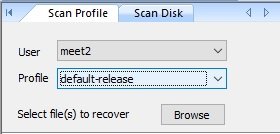
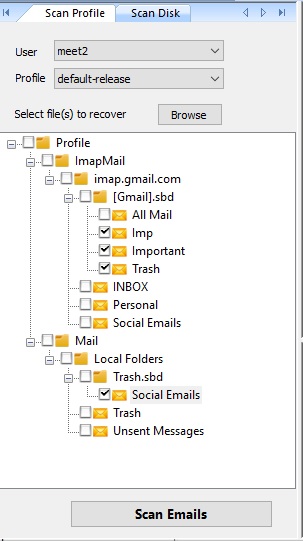
If Repair Folder, index rebuilding, and a profile backup do not restore the messages, use Amrev Thunderbird Email Recovery to scan a safe copy of the available profile or mailbox files. Follow the illustrated steps below.
Steps to Recover Emails from a Corrupted Thunderbird Inbox
The following screenshots show the relevant selection and preview stages in Amrev Thunderbird Email Recovery Software. Always scan a copy where possible and verify messages before saving.
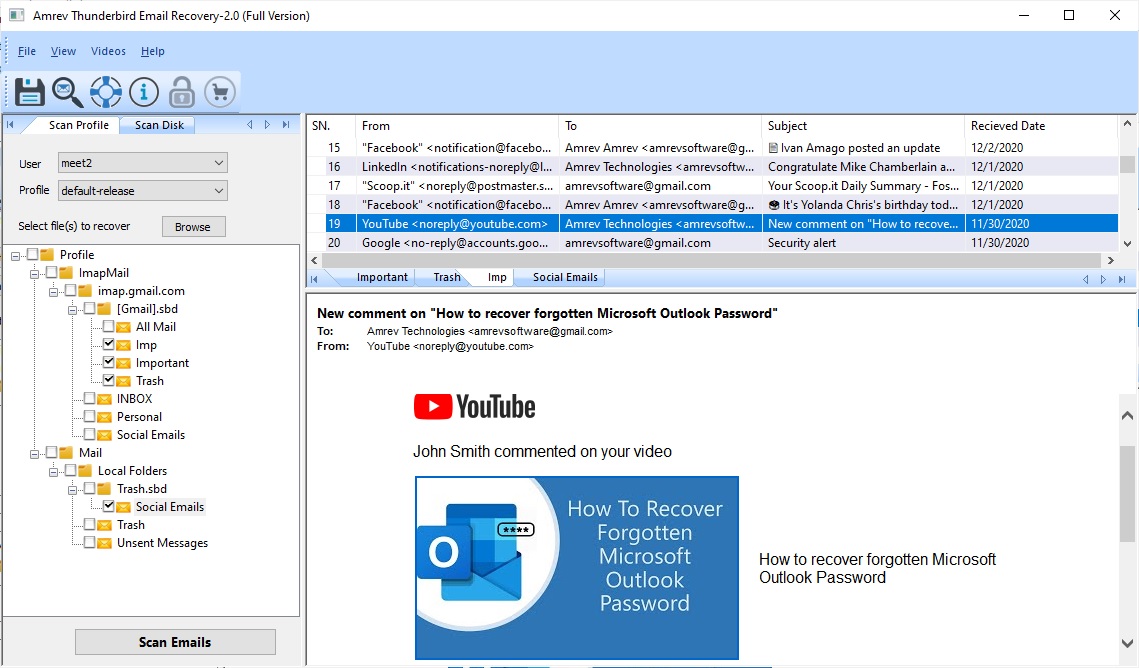
- Click Save to export the selected emails as individual .eml files.
- Open Thunderbird and create or select a healthy mail folder.
- Drag the saved .eml files into that Thunderbird folder.
- Open a few imported messages and attachments to verify the recovery.
When Thunderbird Email Recovery Software Can Help
Built-in methods are the right starting point when messages remain in Trash, on the server, or inside a healthy profile. If the original profile or mailbox file is deleted, inaccessible, or damaged, Amrev Thunderbird Email Recovery Software can scan a selected profile, drive, or email database and preview messages that it identifies before saving.
Recovery is never guaranteed. Results depend on the condition of the source file and whether deleted disk space has been overwritten. Save recovered data to a different drive rather than the affected source.