Thunderbird Profile Recovery on Windows
Has Thunderbird opened without your emails, folders, accounts, or settings? Your original Thunderbird profile may still be available on the computer, stored in a backup, or readable from copied profile files.
Quick answer: check whether Thunderbird opened a different profile, locate the original profile folder, and restore a verified backup if one is available. If Thunderbird cannot display emails from the recovered profile, scan a safe copy with Amrev Thunderbird Email Recovery.
- What a Thunderbird profile contains
- Where profiles are stored on Windows
- Three methods for recovering a Thunderbird profile
- How to scan recovered profile files with Amrev Thunderbird Email Recovery
- How to prevent future profile loss
What Is a Thunderbird Profile?
A Thunderbird profile contains account settings, locally stored email, address books, message filters, preferences, and other user data. Reinstalling Thunderbird does not automatically recreate a profile that has been deleted or damaged, because the application and user profile are stored separately.
Where Is the Thunderbird Profile Stored on Windows?
Thunderbird profiles are normally stored under %APPDATA%\Thunderbird\Profiles. Each profile directory has a generated name, such as a random group of characters followed by a profile label. Mail data may appear under Mail, ImapMail, and Mail\Local Folders.
- Press Windows + R.
- Enter %APPDATA%\Thunderbird\Profiles.
- Select OK.
- Copy the complete Profiles directory to another drive before making changes.
Before Starting Thunderbird Profile Recovery
Close Thunderbird and preserve every profile that may contain the missing data. Do not use the Remove option in Profile Manager while investigating, and do not copy unverified files directly over the active profile. Work from a duplicate whenever possible.
Method 1: Open the Correct Existing Thunderbird Profile
An update or reinstall can cause Thunderbird to start with a different profile. The original profile may still be registered and ready to use.
- Open Thunderbird.
- Go to Help > Troubleshooting Information.
- Select about:profiles.
- Review every profile listed on the page.
- Use Launch profile to inspect another profile without deleting the current one.
- If the profile contains your missing data, back it up before selecting Set as default profile.
Method 2: Restore a Thunderbird Profile from Backup
Use this method when you have a copy created before the profile became missing or damaged. Restore the complete profile rather than selecting only files that appear important.
- Close Thunderbird completely.
- Make an additional copy of the backup and keep the original untouched.
- Copy the restored profile to a safe working location.
- Open Thunderbird Profile Manager.
- Create or register a profile that points to the restored copy.
- Launch it and check emails, folders, accounts, address books, and attachments.
- Keep the old and current profiles until the restored data has been verified and backed up.
What If the Restored Profile Opens but Emails Are Missing?
The profile may be incomplete, the wrong profile may have been restored, or Thunderbird may not be reading a folder correctly. Check the Mail, ImapMail, and Local Folders directories in the restored copy. An extensionless mailbox file may contain messages, while a similarly named MSF file is only an index. Do not delete either file until the profile has been backed up.
How to Prevent Thunderbird Profile Loss
Regular profile backups make recovery faster and safer.
- Back up the complete Thunderbird directory, not only Inbox.
- Keep another backup on a separate physical drive or trusted backup service.
- Close Thunderbird before copying its profile.
- Label backups with the date and computer name.
- Verify important messages and attachments in restored backups.
- Do not delete an unfamiliar profile after an update or reinstall.
Method 3: Use Professional Recovery Software—Amrev Thunderbird Email Recovery
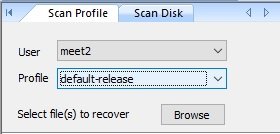
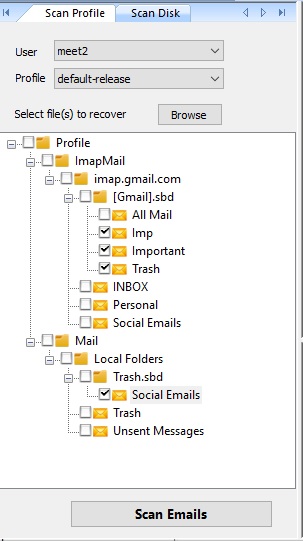
If the restored or copied profile contains mailbox data that Thunderbird cannot display, use Amrev Thunderbird Email Recovery to select the available profile or browse to copied profile files. Follow the illustrated steps below.
Steps to Recover Emails from a Thunderbird Profile
The following screenshots show the relevant selection and preview stages in Amrev Thunderbird Email Recovery Software. Always scan a copy where possible and verify messages before saving.
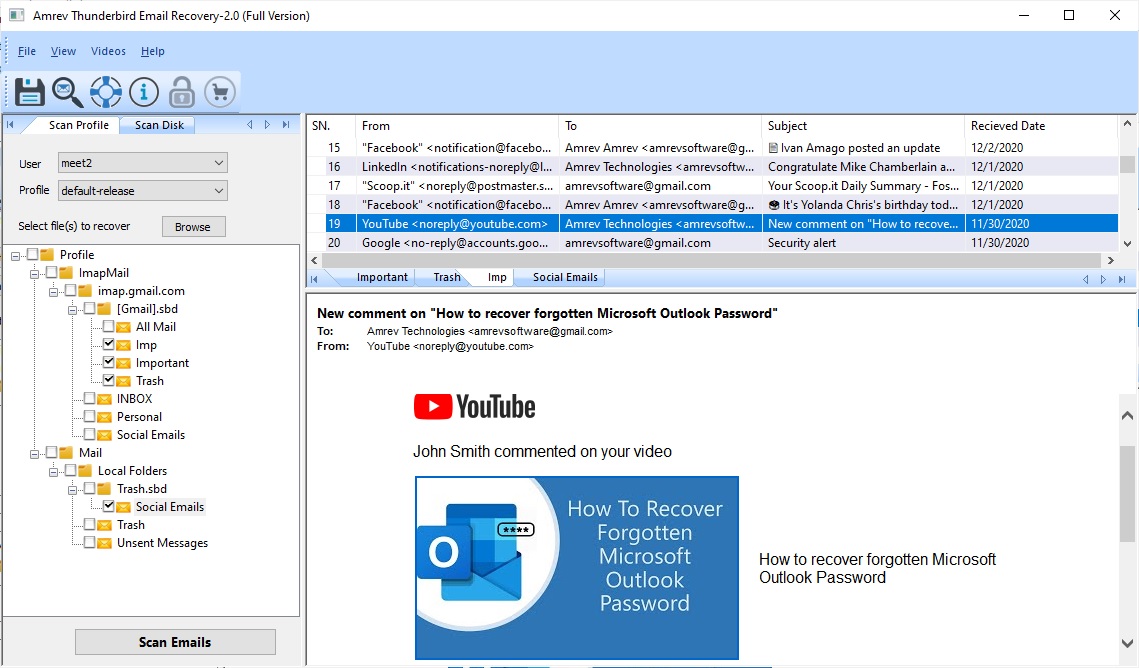
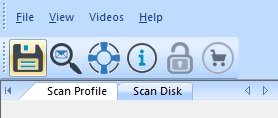
- Click Save to export the selected emails as individual .eml files.
- Open Thunderbird and select the required mail folder.
- Drag the saved .eml files into that Thunderbird folder.
- Open a few imported messages and attachments to verify the recovery.
When Thunderbird Email Recovery Software Can Help
Built-in methods are the right starting point when messages remain in Trash, on the server, or inside a healthy profile. If the original profile or mailbox file is deleted, inaccessible, or damaged, Amrev Thunderbird Email Recovery Software can scan a selected profile, drive, or email database and preview messages that it identifies before saving.
Recovery is never guaranteed. Results depend on the condition of the source file and whether deleted disk space has been overwritten. Save recovered data to a different drive rather than the affected source.