How to Recover Deleted Thunderbird Emails
Have you accidentally deleted important messages in Mozilla Thunderbird? Deleted email is not always erased immediately. It may still be available in Thunderbird Trash, the provider’s webmail, a profile backup, or a local Thunderbird mailbox file.
Quick answer: first check Trash and webmail, then search every folder and inspect your backups. If the messages are no longer available through those methods, preserve the affected Thunderbird profile before attempting mailbox or drive recovery.
- What happens when Thunderbird email is deleted
- Where Thunderbird stores local messages
- Three methods for recovering deleted email
- How to use professional recovery software when manual methods fail
- Ways to prevent permanent email loss
Can Deleted Thunderbird Emails Be Recovered?
Recovery depends on how the message was stored and deleted. A recent deletion may only move the message to Trash. IMAP mail may remain on the server for a limited time, while POP or Local Folders mail may exist only inside the Windows profile. Once local message data or deleted disk space is overwritten, no recovery method can restore it.
- Best chance: the email remains in Trash, webmail, another synchronized device, or a recent backup.
- Possible recovery: the message remains inside an intact local mailbox but is hidden by an index or display problem.
- Lower chance: the mailbox file or profile was permanently deleted and the disk has continued to be used.
What Happens When You Delete an Email in Thunderbird?
The result varies by account and settings. Thunderbird may move the message to Trash, mark it as deleted inside a local mailbox, or synchronize the deletion with an IMAP server. Compacting a folder can remove locally stored message data that was previously only marked for deletion. This is why you should back up the profile before compacting, repairing, or editing mailbox files.
Where Thunderbird Stores Emails on Windows
Thunderbird profiles are normally located under %APPDATA%\Thunderbird\Profiles. Within a profile, locally available mail commonly appears under Mail, ImapMail, or Mail\Local Folders. With MBOX storage, a file named Inbox without an extension may contain message data; Inbox.msf is an index and does not contain complete message bodies.
Method 1: Recover Deleted Emails from Thunderbird Trash
Begin with the simplest and safest method.
- Open Thunderbird and select the affected email account.
- Open Trash, Deleted, or the provider-specific deleted-items folder.
- Search for the sender, subject, or deletion date.
- Select the messages, right-click, and choose Move To.
- Move them to Inbox or a newly created recovery folder.
- Open several restored messages and attachments to confirm that they are complete.
Method 2: Recover Thunderbird Emails from a Profile Backup
A backup created before deletion may contain the missing mail. Always restore into a separate test location so an old profile does not overwrite the active one or trigger unwanted synchronization.
- Close Thunderbird completely.
- Duplicate the backup and keep one untouched copy.
- Open Help > Troubleshooting Information and note the current profile folder.
- Use Thunderbird Profile Manager to register or open the restored copy.
- If the profile contains the missing messages, copy them into a recovery folder or export them.
- Verify the recovered mail before changing any default-profile setting.
Why Some Thunderbird Emails Cannot Be Recovered
A scan may not find a message if the provider permanently removed it, the local mailbox was compacted after deletion, the source file is severely truncated, or deleted disk sectors have been overwritten. SSD maintenance behavior can also reduce the possibility of recovering deleted files. No reputable tool should promise a guaranteed recovery rate.
How to Prevent Thunderbird Email Loss
A small amount of preparation greatly improves recoverability.
- Back up the complete Thunderbird profile regularly.
- Keep an additional copy on another physical drive or trusted backup service.
- Confirm whether important accounts use IMAP, POP, or Local Folders.
- Review server retention and Trash-emptying settings.
- Avoid editing, repairing, or compacting a damaged profile before backing it up.
- Monitor drive health and close Thunderbird normally before shutting down Windows.
Method 3: Use Professional Recovery Software—Amrev Thunderbird Email Recovery
If the manual methods do not recover the deleted messages, use Amrev Thunderbird Email Recovery to scan the available Thunderbird profile or copied profile files. Follow the illustrated steps below.
Steps to Recover Deleted Emails with Amrev Thunderbird Email Recovery
The following screenshots show the relevant selection and preview stages in Amrev Thunderbird Email Recovery Software. Always scan a copy where possible and verify messages before saving.
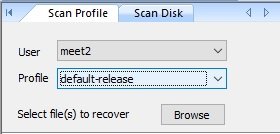
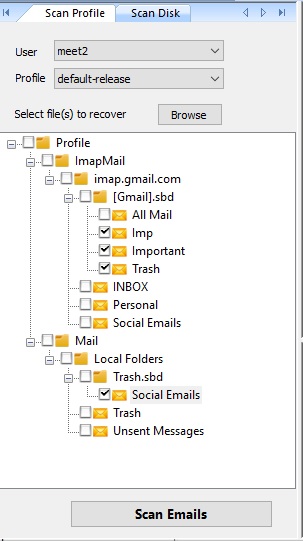
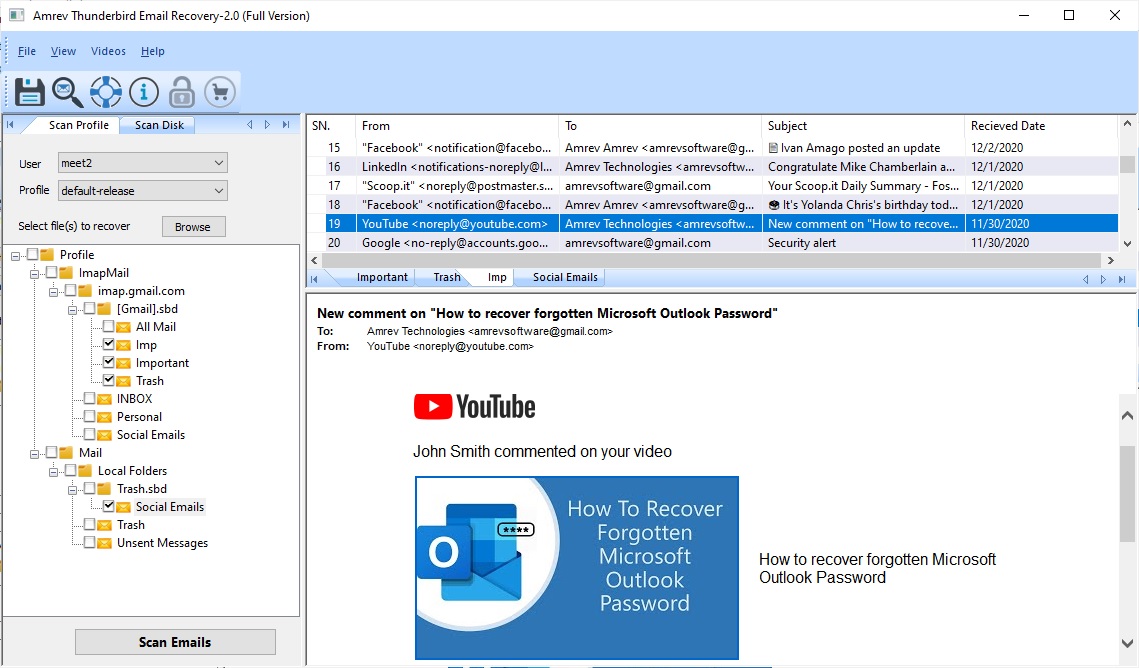
- Click Save to export the selected emails as individual .eml files.
- Open Thunderbird.
- Drag the saved .eml files into the required Thunderbird folder.
- Open a few imported messages and attachments to verify the recovery.
When Thunderbird Email Recovery Software Can Help
Built-in methods are the right starting point when messages remain in Trash, on the server, or inside a healthy profile. If the original profile or mailbox file is deleted, inaccessible, or damaged, Amrev Thunderbird Email Recovery Software can scan a selected profile, drive, or email database and preview messages that it identifies before saving.
Recovery is never guaranteed. Results depend on the condition of the source file and whether deleted disk space has been overwritten. Save recovered data to a different drive rather than the affected source.