Thunderbird MBOX Recovery: How to Recover Emails Safely
Can’t open an old Thunderbird mailbox, or are messages missing from an Inbox, Sent, or Local Folders file? Thunderbird may store many emails together in an MBOX mailbox, so one missing or damaged file can affect an entire folder of messages.
Quick answer: make a copy of the mailbox, confirm that you have the actual MBOX file rather than its MSF index, and try opening or importing the copy in a test profile. If Thunderbird cannot read it, use Amrev Thunderbird Email Recovery to scan the copied mailbox data and preview recoverable messages.
- What a Thunderbird MBOX file is
- How to locate the correct mailbox file
- Four methods for recovering Thunderbird MBOX emails
- How to scan copied mailbox data with Amrev Thunderbird Email Recovery
- How to verify and safely import recovered messages
What Is a Thunderbird MBOX File?
MBOX is a mailbox format that stores multiple email messages together in one file. In a Thunderbird profile, the mailbox may use the folder name without a file extension—for example, Inbox, Sent, or a custom folder name.
How to Identify the Correct Thunderbird Mailbox File
Thunderbird data is normally stored below the Windows profile directory under Mail, ImapMail, or Mail\Local Folders. Preserve the complete surrounding profile structure before selecting individual files.
- An extensionless file such as Inbox may contain the messages.
- A similarly named file such as Inbox.msf is an index, not the complete mailbox.
- A directory ending in .sbd contains subfolders associated with the mailbox.
- A large extensionless file is more likely to contain message data than a small MSF index.
Before Starting Thunderbird MBOX Recovery
Close Thunderbird and make at least one untouched copy of the profile and mailbox. Do not test repairs on the only available file. Save imported or recovered messages somewhere other than the original profile until their contents have been verified.
Method 1: Open or Import a Healthy MBOX Copy
Use this method when the mailbox has a reasonable file size and is not visibly damaged. Work in a separate Thunderbird test profile or Local Folders destination.
- Duplicate the MBOX file and keep the original untouched.
- Create a test profile or a separate Local Folders destination.
- Use a compatible Thunderbird MBOX import method on the copy.
- Wait for Thunderbird to finish indexing the imported mailbox.
- Check messages from different dates and verify their attachments.
- Do not replace the original mailbox until the imported copy has been confirmed.
Method 2: Rebuild the Thunderbird Folder Index
Use this method when the MBOX file appears intact but Thunderbird shows an empty, incomplete, or incorrect folder. Rebuilding the MSF index can reveal messages already present in the MBOX; it cannot repair message content missing from the mailbox.
- Back up the complete profile.
- Open Thunderbird and right-click the affected folder.
- Select Properties.
- Click Repair Folder.
- Wait while Thunderbird rebuilds the index.
- Review recent and older messages after the repair.
Method 3: Restore the MBOX from a Profile Backup
If the mailbox is missing, unexpectedly small, or cannot be imported, restore a version created before the problem occurred.
- Close Thunderbird.
- Duplicate the backup and keep one copy untouched.
- Restore the complete profile or the mailbox with its related folder structure into a safe test location.
- Use Profile Manager or an MBOX import process to inspect the restored copy.
- Verify message bodies, dates, senders, attachments, and folder organization.
- Keep the original and restored files until recovery has been confirmed.
Why a Thunderbird MBOX File May Not Open
Import may fail if the selected file is only an MSF index, the MBOX structure is damaged, message data is truncated, the file has incorrect permissions, or the mailbox is not actually in MBOX format. A zero-byte file does not contain messages that can be restored by rebuilding an index.
How to Verify Recovered MBOX Emails
Do not judge recovery only by the number of displayed messages. Open samples from the beginning, middle, and end of the recovered folder. Check message bodies, dates, sender and recipient information, character encoding, and attachments before deleting any source or backup files.
Method 4: Use Professional Recovery Software—Amrev Thunderbird Email Recovery
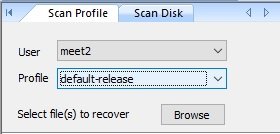
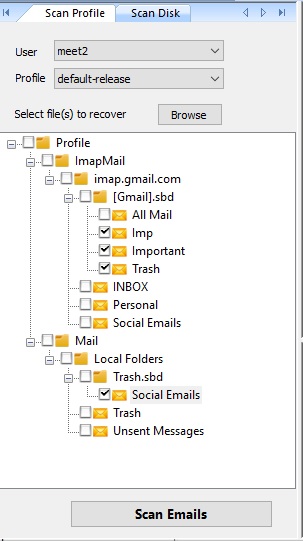
If Thunderbird cannot open or import the copied mailbox, use Amrev Thunderbird Email Recovery to select the available profile or browse to the copied mailbox files. Follow the illustrated steps below.
Steps to Recover Emails from a Thunderbird MBOX File
The following screenshots show the relevant selection and preview stages in Amrev Thunderbird Email Recovery Software. Always scan a copy where possible and verify messages before saving.
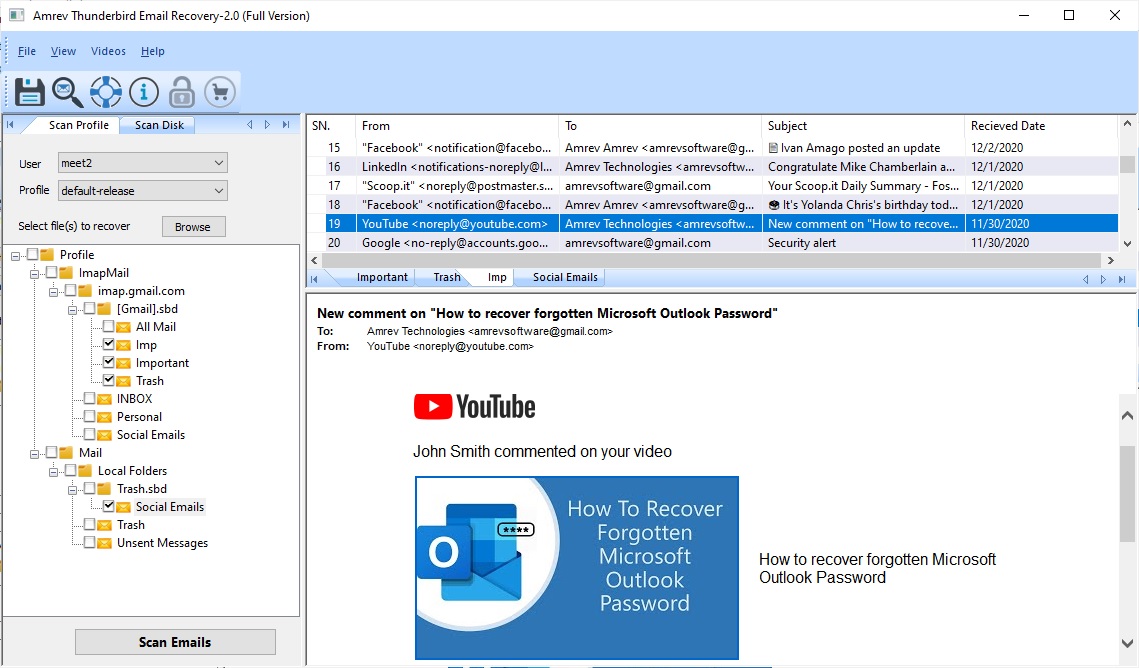
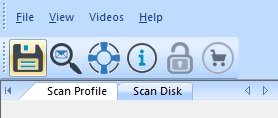
- Click Save to export the selected emails as individual .eml files.
- Open Thunderbird and create or select the required mail folder.
- Drag the saved .eml files into that Thunderbird folder.
- Open messages from different dates and verify their attachments.
When Thunderbird Email Recovery Software Can Help
Built-in methods are the right starting point when messages remain in Trash, on the server, or inside a healthy profile. If the original profile or mailbox file is deleted, inaccessible, or damaged, Amrev Thunderbird Email Recovery Software can scan a selected profile, drive, or email database and preview messages that it identifies before saving.
Recovery is never guaranteed. Results depend on the condition of the source file and whether deleted disk space has been overwritten. Save recovered data to a different drive rather than the affected source.