How to Recover Thunderbird Emails from Old Hard Drive
Need to recover Thunderbird emails from an old computer or hard drive? The messages may still exist inside the previous Windows user profile, a Thunderbird profile folder, or mailbox data stored on the old disk.
Quick answer: connect the old hard drive as a secondary drive, avoid saving new data to it, and look for the Thunderbird profile under the former Windows user account. If the profile cannot be opened or copied normally, scan the old drive with Amrev Thunderbird Email Recovery.
- Where Thunderbird emails may be stored on an old drive
- How to copy and open an existing profile safely
- How to restore mail from a profile backup
- How to scan the old drive with Amrev Thunderbird Email Recovery
- How to import recovered .eml messages into Thunderbird
Where Are Thunderbird Emails Stored on an Old Hard Drive?
On Windows, Thunderbird profiles are normally stored below the previous user account in Users\username\AppData\Roaming\Thunderbird\Profiles — see our Thunderbird profile recovery guide for full steps. The AppData directory may be hidden. Mail data can appear inside Mail, ImapMail, and Mail\Local Folders.
Before Recovering Email from the Old Drive
Connect the old disk as a secondary drive rather than starting Windows from it. If the drive is unstable, clicking, disconnecting, or reporting read errors, minimize use and create a safe copy before continuing. Never install software or save recovered messages onto the old drive.
Method 1: Copy and Open the Existing Thunderbird Profile
Use this method when the old drive is readable and its Thunderbird profile folder still exists.
- Close Thunderbird on the current computer.
- Browse to the old drive’s Users\username\AppData\Roaming\Thunderbird\Profiles directory.
- Copy the complete Thunderbird profile to a healthy drive. Do not work directly on the old disk.
- Keep an untouched copy of the original profile.
- Use Thunderbird Profile Manager to open the copied profile in a test configuration.
- Check emails, folders, dates, and attachments before making it the default profile.
Method 2: Restore Thunderbird Emails from an Old Profile Backup
If a separate backup is available, restore the complete profile into a safe test location. A complete copy is preferable to selecting individual files because it preserves mailbox folders and related profile data.
- Duplicate the backup and keep one copy unchanged.
- Restore the profile to a healthy local drive.
- Open it through Thunderbird Profile Manager.
- Check Inbox, Sent, Archives, Trash, and Local Folders.
- Verify messages from different dates and open several attachments.
- Export or copy the required emails only after confirming that the restored profile is healthy.
What If the Old Thunderbird Profile Cannot Be Opened?
The profile may be incomplete, its mailbox index may be damaged, or the old drive may contain deleted profile data that Windows no longer lists normally. Preserve the source and avoid repeated repair attempts on the only copy.
Why Some Emails May Not Be Available
An IMAP profile may contain only messages that were synchronized for offline use. Recovery can also be limited if mailbox files were deleted, the drive is physically damaged, or deleted storage space has been overwritten. No recovery method can guarantee every message.
Method 3: Use Professional Recovery Software—Amrev Thunderbird Email Recovery
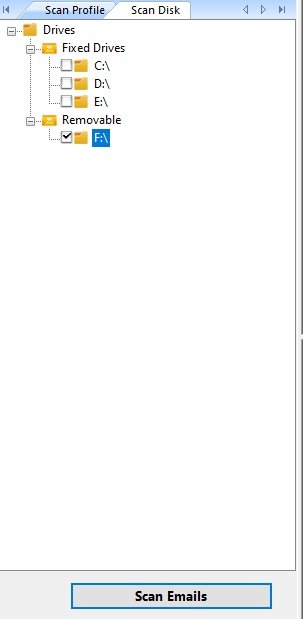
If the old profile cannot be copied or opened normally, use Amrev Thunderbird Email Recovery and its Scan Disk option. Follow the documented drive-recovery steps below.
Steps: How to Recover Thunderbird Emails from Old Hard Drive
The following screenshots show the relevant selection and preview stages in Amrev Thunderbird Email Recovery Software. Always scan a copy where possible and verify messages before saving.
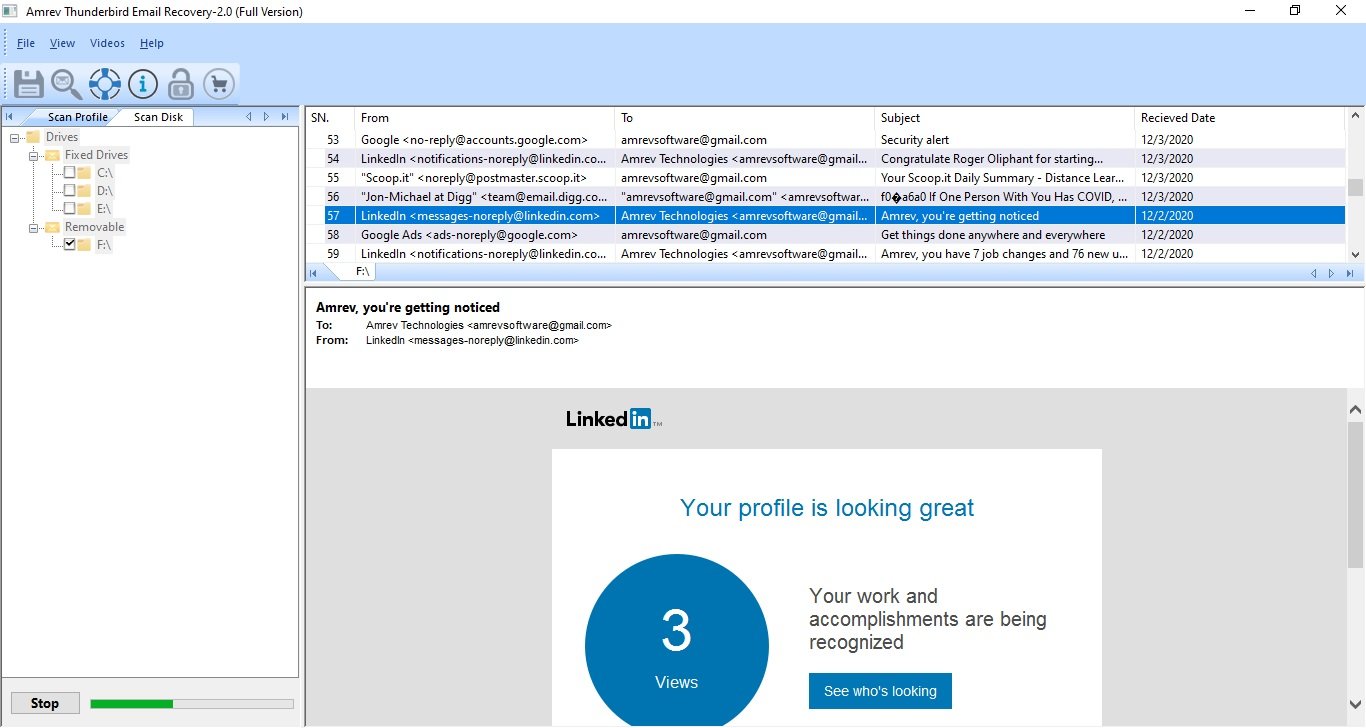
- Select the required recovered emails and click Save.
- Choose a healthy destination that is not on the old hard drive.
- The selected emails are saved as individual .eml files.
- Open Thunderbird and drag the saved .eml files into the required mail folder.
- Open several imported messages and attachments to verify the recovery.
When Thunderbird Email Recovery Software Can Help
Built-in methods are the right starting point when messages remain in Trash, on the server, or inside a healthy profile. If the original profile or mailbox file is deleted, inaccessible, or damaged, Amrev Thunderbird Email Recovery Software can scan a selected profile, drive, or email database and preview messages that it identifies before saving.
Recovery is never guaranteed. Results depend on the condition of the source file and whether deleted disk space has been overwritten. Save recovered data to a different drive rather than the affected source.