
This user guide offers clear, step-by-step instructions for scanning, reviewing, and removing duplicate photos. We recommend reading this manual before using Amrev Duplicate Photo Finder for the best results.
Amrev Duplicate Photo Finder is an advanced tool designed to locate and manage identical or similar photos across your computer and connected storage devices. The software provides three powerful scanning modes, each suited for different photo-cleanup needs:
IMPORTANT! It is recommended to download and install the software on to fixed drive (like hard drive). Please do not install the software on the removable drive (like memory card).
Amrev Duplicate Photo Finder is developed to work on below mentioned system configurations:
Amrev Duplicate Photo Finder
End-User License Agreement
Copyright ©
Amrev Technologies LLP.,India
All rights reserved.
Please read this document carefully. This is a legal agreement between you (either an individual or an entity) and Amrev Technologies LLP, the vendor of this Software. This Agreement supersedes any prior version license and governs your use of the software.
Anyone may use the demo/trial version of Amrev Duplicate Photo Finder. Before deciding upon the purchase, you may have a chance to verify whether your lost data can be recovered. But if you wish to save recovered files, you must purchase the full version..
Once registered, the user is granted an exclusive license to use. Amrev Duplicate Photo Finder on one computer, for any legal purpose, at a time. You need a license for a machine on which the program is installed. The registered Amrev Duplicate Photo Finder may not be rented or leased but can be ermanently transferred, if the person who receiving it agrees to the terms of this license. If the software is updated, the transfer must include the update and all previous versions.
The Amrev Duplicate Photo Finder demo/trial version may be freely distributed, if the distribution package is not modified. No person or company may charge a fee for the distribution of Amrev Duplicate Photo Finder demo version without written permission from the copyright holder.
Amrev Duplicate Photo Finder IS DISTRIBUTED "AS IS". NO WARRANTY OF ANY KIND IS EXPRESSED OR IMPLIED. YOU USE AT YOUR OWN RISK. THE AUTHOR WILL NOT BE LIABLE FOR DATA LOSS, DAMAGES, LOSS OF PROFITS OR ANY OTHER KIND OF LOSS WHILE USING OR MISUSING THIS SOFTWARE.
You may not use, copy, emulate, clone, rent, lease, sell, modify, de-compile, disassemble, otherwise reverse engineer, or transfer the licensed program, or any subset of the licensed program, except as provided for in this agreement. Any such unauthorized use shall result in immediate and automatic termination of this license and may result in criminal and/or civil prosecution.
COPYRIGHT. The software is distributed by Amrev Technologies LLP, and is protected by International copyright laws and treaty provisions.
SOFTWARE SUPPORT. Support will only be provided by e-mail and only on the most current version. Queries regarding the installation and use of the software should be submitted by e-mail to support@amrevsoftware.com. Requests for additional features and enhancements should be submitted by e-mail to info@amrevsoftware.com. We will attempt to implement all reasonable requests but is not obliged to implement it. If you have questions about buying or updating our products, please Email us at sales@amrevsoftware.com.
RESERVATION. Amrev Technologies LLP, reserves the right to change the license agreement of the software. Amrev Technologies LLP, reserves the right to change prices without notice. Amrev Technologies LLP, reserves all rights that are not expressly granted here.
Installing and using Amrev Duplicate Photo Finder signifies acceptance of these terms and conditions of the license. If you do not agree with the terms of this license you must remove Amrev Duplicate Photo Finder files from your storage devices and cease to use the product.
Step 1.Start a New Scan
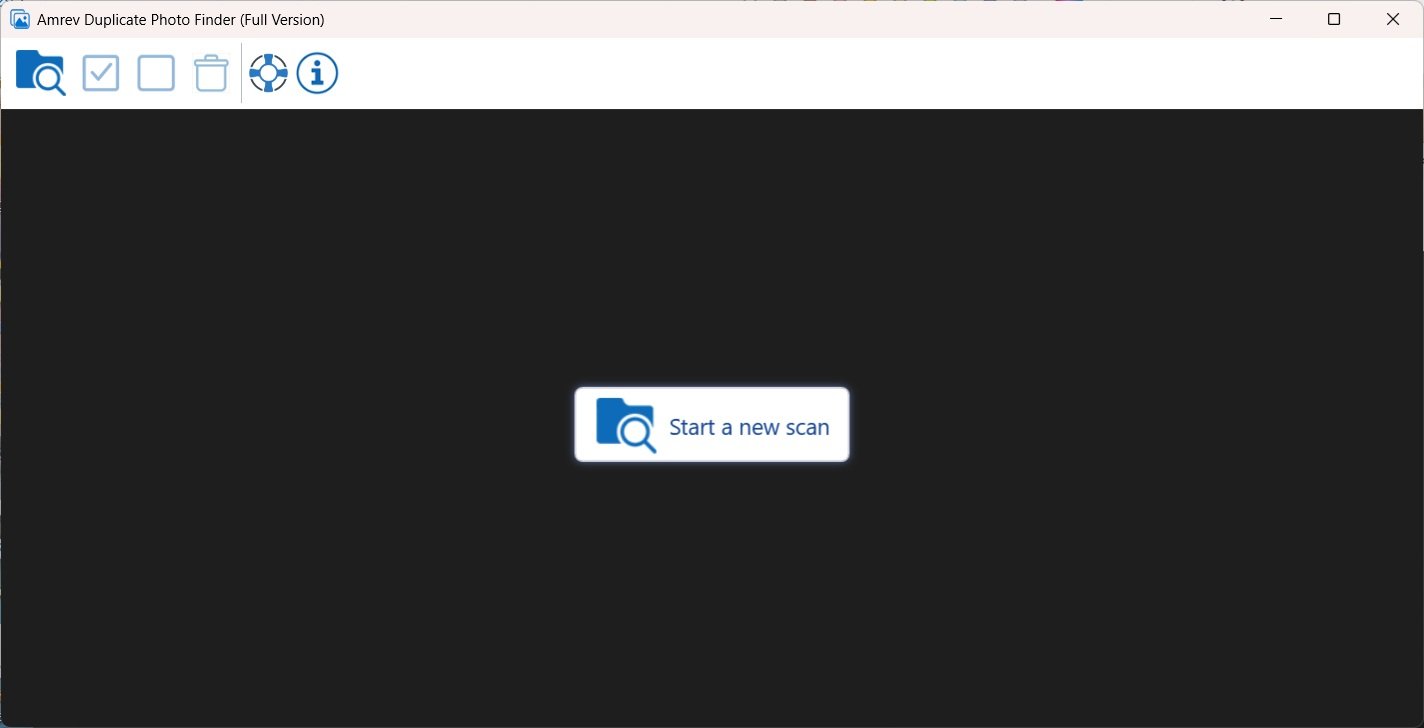
Launch Amrev Duplicate Photo Finder. On the main screen, click Start a new scan. Select the folder or drive you want to scan for duplicate and similar photos.
Step 2.Wait for the Scan to Complete
The software will begin analyzing all images in the selected location.
You can track progress on the top bar.
When the scan finishes, the total number of Duplicate Found and Similar Found will be displayed.
Step 3.Review the Groups of Duplicates
All detected photos are shown in groups, such as:
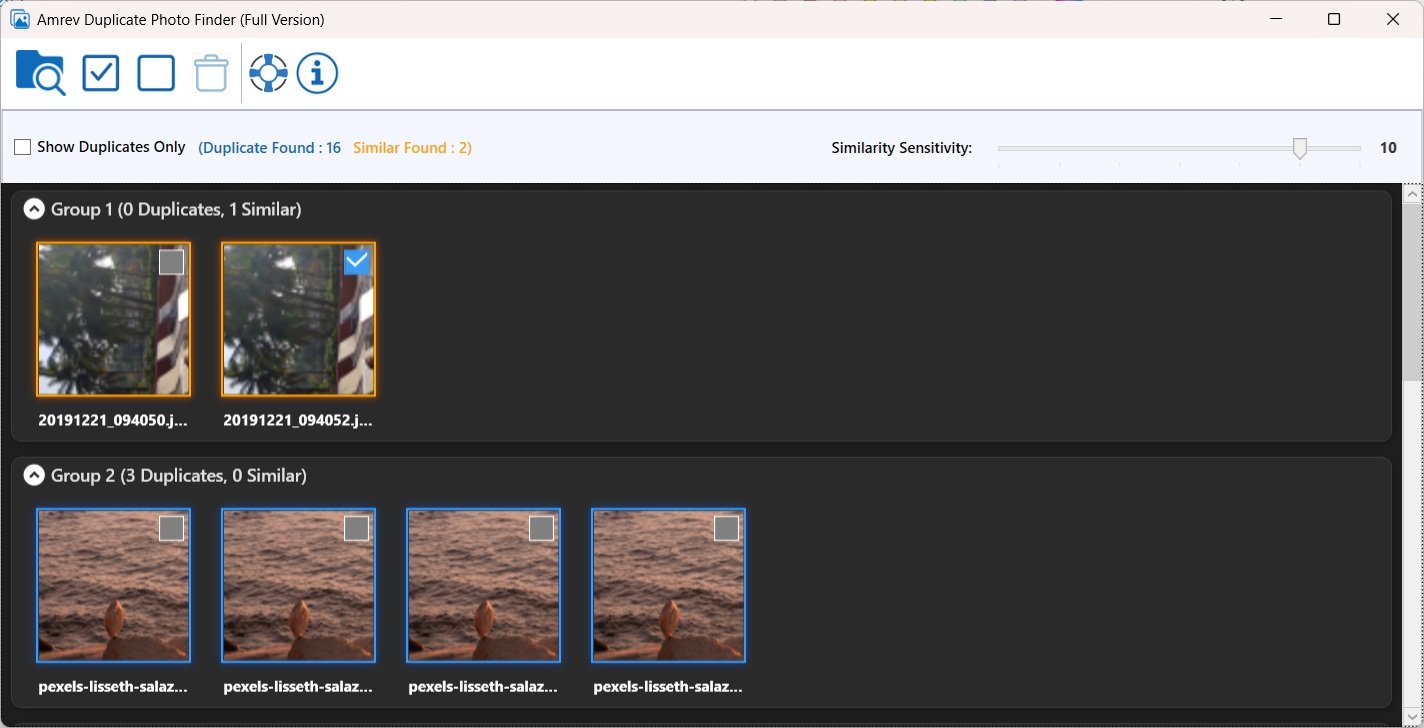
Each group is color-bordered for easy identification.
You can click any image to preview or compare duplicates.
Use Show Duplicates Only to hide non-duplicates.
Use Similarity Sensitivity slider to adjust similarity matching.
Step 4.Select Photos to Remove or Move
Use the checkbox on each photo to select the images you want to remove. You may also use the top toolbar buttons to:
Step 5.Choose an Action (Delete or Move)
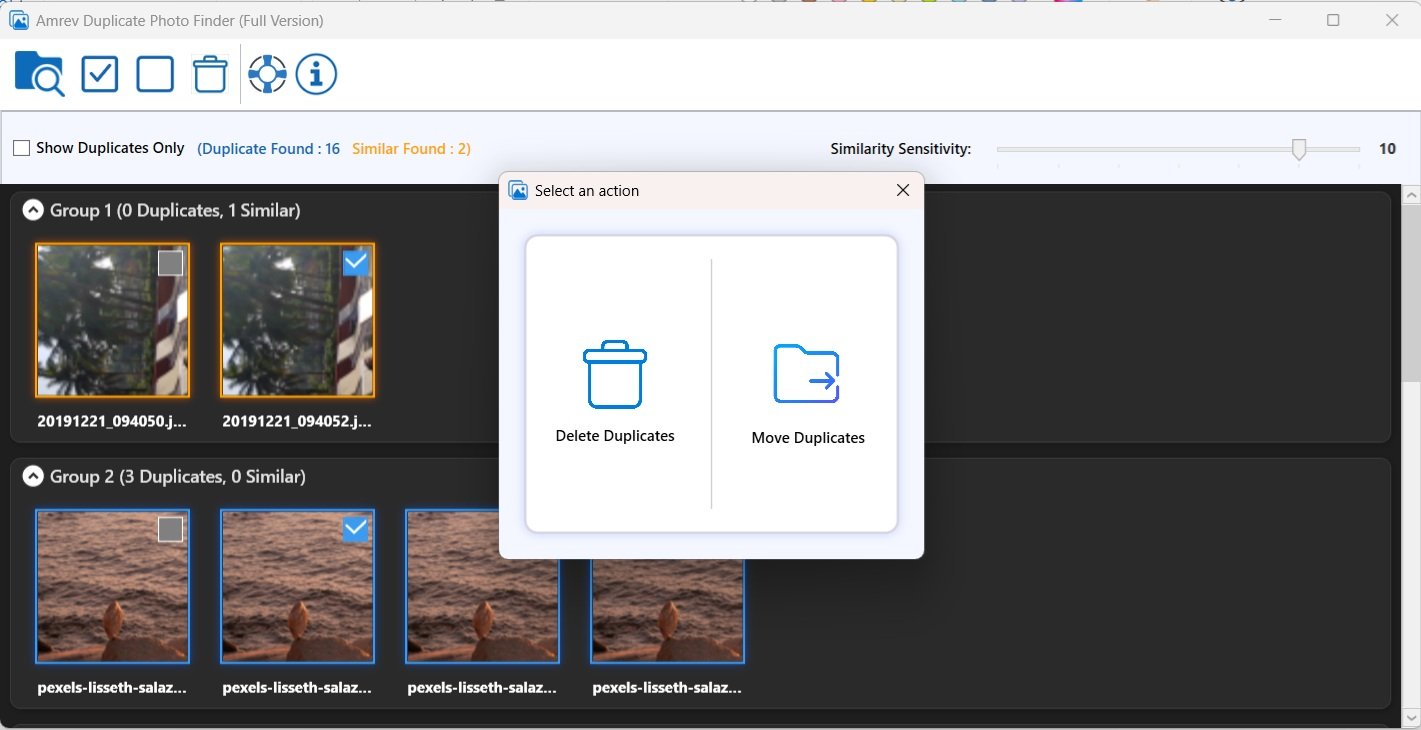
Once selections are made, click the Delete / Move button on the toolbar. A popup will appear with two options:
Choose the action you prefer.
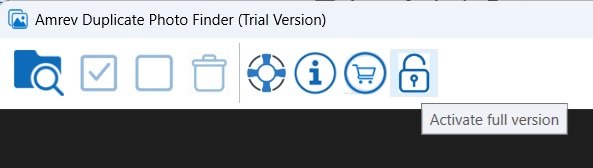
Step 1. Launch the software and click on Activate button.
Step 2. Enter the Licence Key in the text field and click on Next button.
Email ID and Password fields will be enabled. Enter your Email ID and Password and click on Activate button. If you have entered a valid key, the software will be activated and confirmation message is displayed.Email ID - You can enter any email ID to retrive your password later.
Password - You can enter any 16 characters password. This password will be used later to reactivate the software.
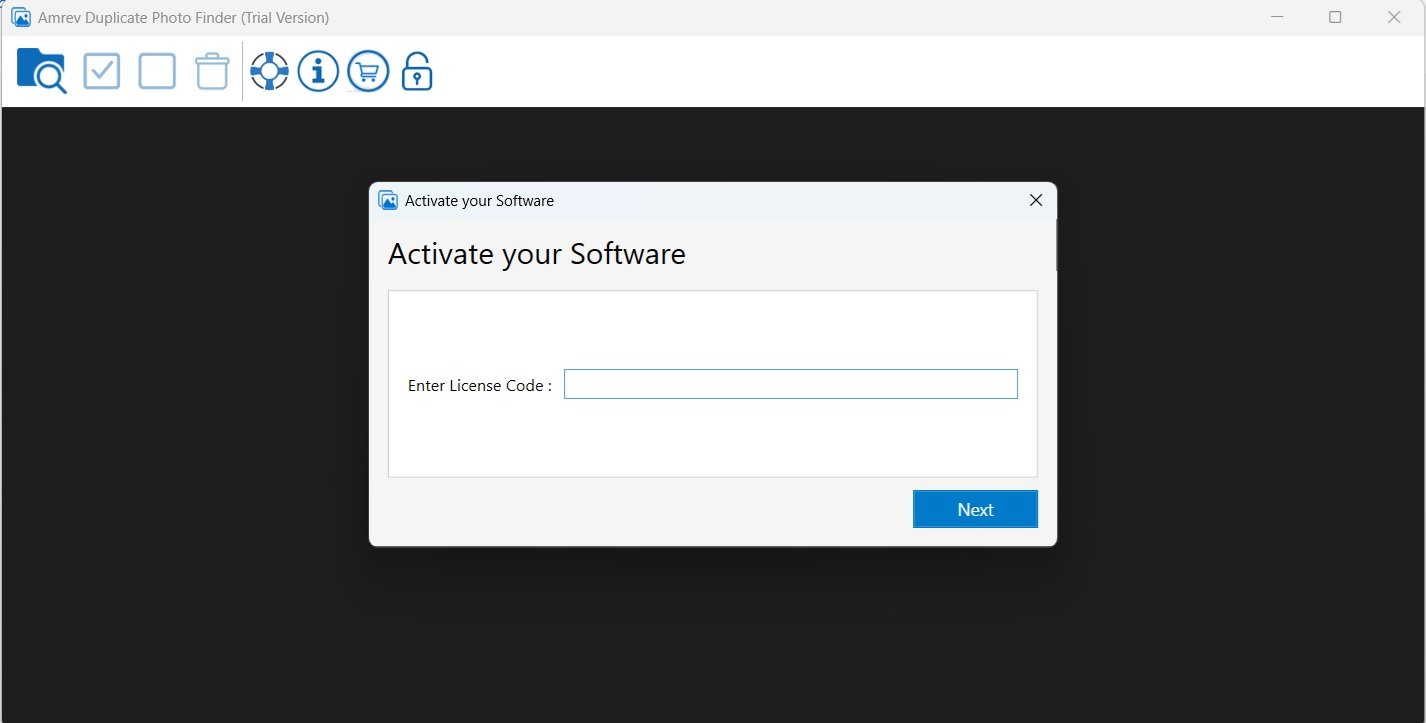
Step 1. Launch the software and click on Activate button.
Step 2. Enter the Licence Key in the text field and click on Get Info button. Password and New Password fields will be visible. Enter your old password in Password text box and enter new password in New Password text box and click on Activate button. If you have entered correct password, the software will be activated and confirmation message is displayed.
Password - Enter your old password, Resend Password button will be used to retrive forgotton/lost password on registered email ID.
New Password - You can enter any 16 characters password. This password will be used later to reactivate the software.
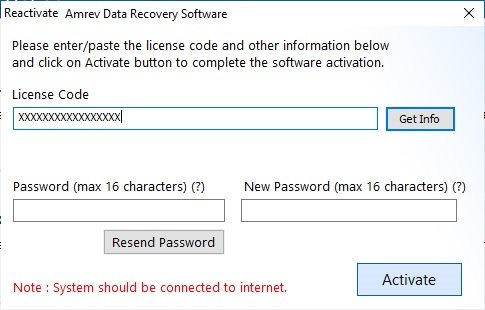
For all your technical queries regarding Amrev Data Recovery, you may send an email to support@amrevsoftware.com
For all your queries regarding Licensing, software usage, you may send an email to sales@amrevsoftware.com
Microsoft Windows and Microsoft is a trademark or registered trademark of Microsoft corporation, Inc.
All other trademarks acknowledged.